PicCat Restoring your images and input…

AI partial redrawing

AI partial redrawingInstructions for use

PicCat AI partial redrawing tool supports smearing local areas of pictures, replacing, repairing or completing details with text commands, which is suitable for product picture refinement and creative picture modification.

Applicable scenarios

  • Suitable for personal, operational, e-commerce and office scenarios that need to quickly complete AI partial redrawing.
  • Support the completion of main operations in the browser, and preview the effects and parameters before processing.
  • It is suitable for batch organizing materials, optimizing release files, and improving the usability of pictures or documents.

Usage steps

  1. Open the AI partial redrawing page and select the picture or file that needs to be processed.
  2. Adjust processing mode, size, quality or AI parameters according to page prompts.
  3. After confirming the preview result, export the file and continue processing the next one or return to the tool list.

AI partial redrawingTreatment effect case

Perfume label and peony repainting

Repaint Chinese brand text on the blank label area of ​​the transparent perfume bottle, and add red peony decoration next to the product
Chinese style architecture and sky repainting

In the photos of modern Chinese city scenery and traditional architecture, the dark and monotonous sky is partially redrawn into a gorgeous sunset, and traditional kite elements are added to naturally integrate without leaving traces.

Traceless replacement of technological items

On the desk of Chinese youth full of life (pearl milk tea, modern books), a blank gray notebook is framed and accurately redrawn into a holographic luminous tablet displaying e-commerce data

Frequently Asked Questions

What usage scenarios does AI partial redrawing support?

PicCat AI partial redrawing tool supports smearing local areas of pictures, replacing, repairing or completing details with text commands, which is suitable for product picture refinement and creative picture modification. Common uses include AI partial redrawing, partial picture redrawing, AI picture modification, picture repair and completion, etc.

Will AI partial redrawing save my original file?

PicCat only provides online multimedia editing technology services. Some lightweight functions are processed locally in the browser, and functions involving AI or high-precision conversion will call cloud processing. After the processing is completed, the temporary files will be destroyed according to the page declaration.

What should I do if AI partial redrawing fails to process?

It is recommended to check the file format, size and clarity first, and if necessary, replace the file and try again. If it fails multiple times, you can submit a problem through the feedback portal in the upper right corner of the page.

Real picture modification case

See how AI partial redrawing can replace picture content

From products, homes to outdoor scenes, after uploading the picture, circle the location that needs to be modified, and then describe the content you want to replace.

Case 01

Kitchen replacement main object

Replace the coffee machine on the desktop with a fruit drink, retaining the desktop, tableware and natural light.
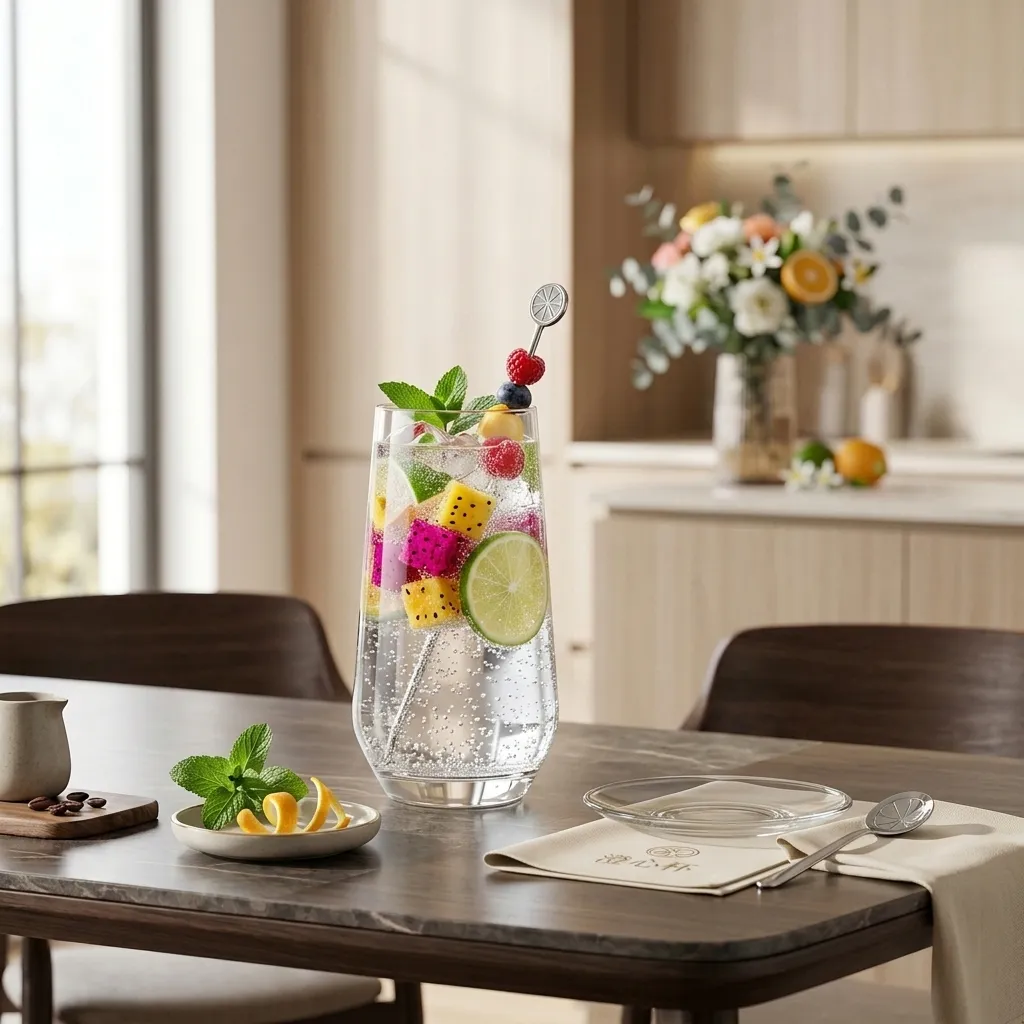
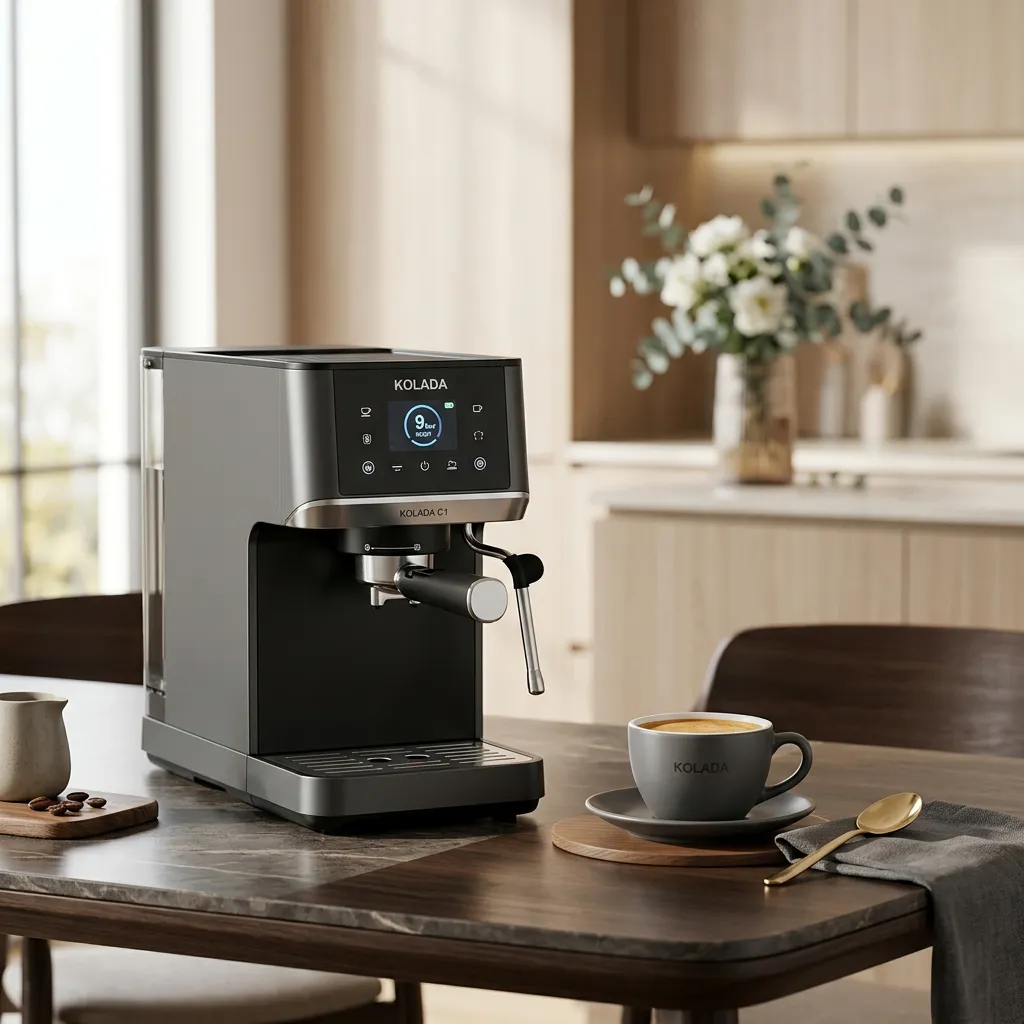
Original coffee machine→Replace fruit drink
  • Circle the parts that need to be replaced, and try to keep other areas as they are.
  • Use words to describe new objects, materials or scenes, retaining the relationship between light, shadow and perspective.
This example illustrates the workflow. Actual results depend on the original image, marked area and instructions.
Kitchen scene after AI replaces coffee machine with fruit drink
Before replacing the coffee machine in the kitchen scene
Case pictures are loading...
Case 02

Home replacement soft furnishings

Replace the decorative vase in the corner of the living room with a floor lamp to maintain overall lighting.

Original decorative vase→Replace with floor lamp
  • Circle the parts that need to be replaced, and try to keep other areas as they are.
  • Use words to describe new objects, materials or scenes, retaining the relationship between light, shadow and perspective.
This example illustrates the workflow. Actual results depend on the original image, marked area and instructions.
After the vase in the living room is replaced with a floor lamp
Before replacing the vase in the living room
Case pictures are loading...
Case 03

Outdoor replacement objects

Replace bicycles on the park grass with benches, retaining vistas, trees and trails.

Original bicycle→Replace with bench
  • Circle the parts that need to be replaced, and try to keep other areas as they are.
  • Use words to describe new objects, materials or scenes, retaining the relationship between light, shadow and perspective.
This example illustrates the workflow. Actual results depend on the original image, marked area and instructions.
After the park bicycle is replaced with a bench
Before park bicycle replacement
Case pictures are loading...
Case 04

Product main picture exchange product

Replace the wireless headset with a portable speaker, retaining the desktop, tray and background atmosphere.

Original wireless earphones→Replace with speaker
  • Circle the parts that need to be replaced, and try to keep other areas as they are.
  • Use words to describe new objects, materials or scenes, retaining the relationship between light, shadow and perspective.
This example illustrates the workflow. Actual results depend on the original image, marked area and instructions.
After replacing wireless earphones with portable speakers
Wireless headset product picture before replacement
Case pictures are loading...