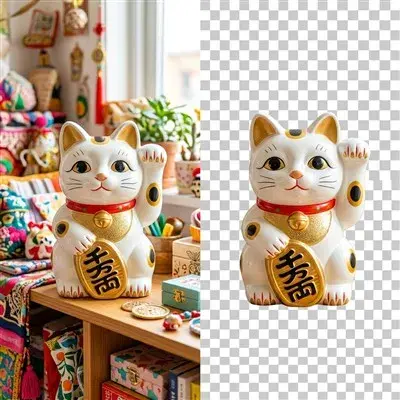
PicCat Restoring your images and input…

AI Background Remover

AI cutout free onlineInstructions for use

The PicCat AI cutout tool can automatically identify commodities, portraits, objects, animals and poster material subjects when uploading pictures, quickly remove the background and generate transparent PNG, which is suitable for e-commerce drawings, ID photos, avatars and design material sorting.

Applicable scenarios

  • Quickly cut out the main body of Taobao, Pinduoduo, Douyin, Xiaohongshu, independent stations and cross-border e-commerce product pictures and generate transparent bottom materials.
  • Suitable for clothing, shoes and bags, digital accessories, household department stores, beauty and personal care, food packaging, jewelry and other product main images and detail page material arrangement.
  • After cutting out the image, you can continue to make product white background images, product background changes, product image expansion and batch processing, forming a set of e-commerce drawing processes from the original image to the shelf image.

Usage steps

  1. When uploading pictures of products, portraits or items, try to choose materials with complete subjects, no obstructions, clear edges and sufficient lighting.
  2. Wait for AI to automatically identify the subject and remove the background, focusing on checking hair, transparent materials, small accessories, shadows and product hole areas.
  3. Download the PNG transparent background result, or continue to enter the white background image, change the background, expand the image and other tools to create the main image, cover and advertising materials.

AI cutout free onlineTreatment effect case

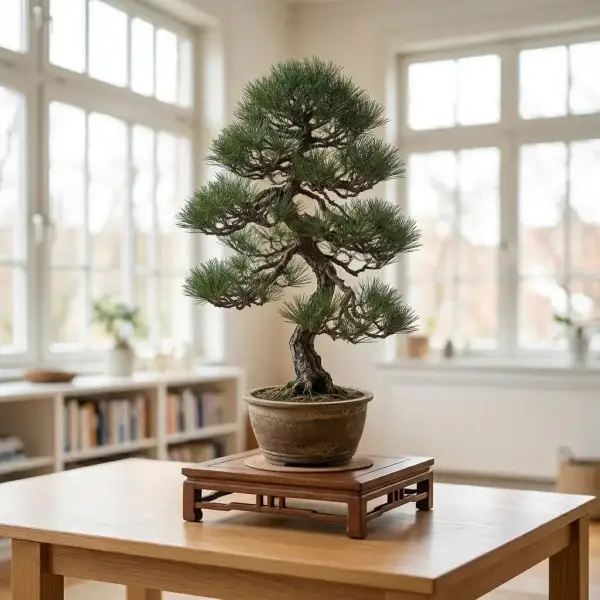
Bonsai product cutout

Remove the indoor display background while retaining the bonsai’s branches, trunk and pot.

Model portrait cutout

Remove the street background and show the cutout around the person and their hair.

Coffee equipment cutout

Extract the coffee maker and cup from an office desk scene, showing their outlines against a transparent-background preview.

Student portrait cutout

Automatically isolate the male student from the library scene, keeping his hair, face and clothing outline. The source was created with this website’s text-to-image tool and the result was produced with its automatic cutout tool.

Long-haired woman cutout

Automatically isolate a woman from an office scene, showing background removal around her hair and knitted top. The source was created with this website’s text-to-image tool and the result was produced with its automatic cutout tool.

Portrait cutout with glasses

Automatically isolate a man wearing glasses, retaining his glasses and shirt outline while removing the café background. The source was created with this website’s text-to-image tool and the result was produced with its automatic cutout tool.

Coffee machine and cup cutout

Automatically identify the coffee machine and cup as foreground objects and remove the café background to show a multiple-object cutout. The source was created with this website’s text-to-image tool and the result was produced with its automatic cutout tool.

Flowers, vase and diffuser cutout

Automatically isolate the flowers, vase and diffuser, retaining the main foliage and containers while removing the table and room background. The source was created with this website’s text-to-image tool and the result was produced with its automatic cutout tool.

Sneakers and headphones cutout

Automatically isolate the sneakers and over-ear headphones, keeping multiple foreground objects while removing the display-space background. The source was created with this website’s text-to-image tool and the result was produced with its automatic cutout tool.

Frequently Asked Questions

What types of products are supported by product cutouts?

Support common physical goods, portrait models, packaging boxes, furniture, clothing, accessories, beauty bottles and jars, food packaging, etc. The clearer the subject and the simpler the background, the more stable the edges of the cutout will be.

Can transparent materials and plush edges be processed?

Transparent, translucent, plush, hair and hollow structures are more complex. It is recommended to use high-definition original images and check the edge details on the results page before downloading or continuing to refine.

How to make an e-commerce white background picture after cutting out the picture?

You can enter the white background image of the product in the relevant tools, and directly place the cut-out subject on the white background to adapt to the release requirements of the product main image.

What format is suitable for saving transparent bottom pictures?

When you need to keep a transparent background, it is recommended to download PNG or a format that supports transparent channels; if you want to put it on the shelf as a normal main image, you can continue to generate a white background image or a scene background image.

Real picture modification case

Compare images before and after AI background removal

Upload a portrait or product image to automatically detect the subject and remove the background. Drag the comparison slider to view the result.

Case 01

Bonsai product cutout

Remove the indoor display background while retaining the bonsai’s branches, trunk and pot.
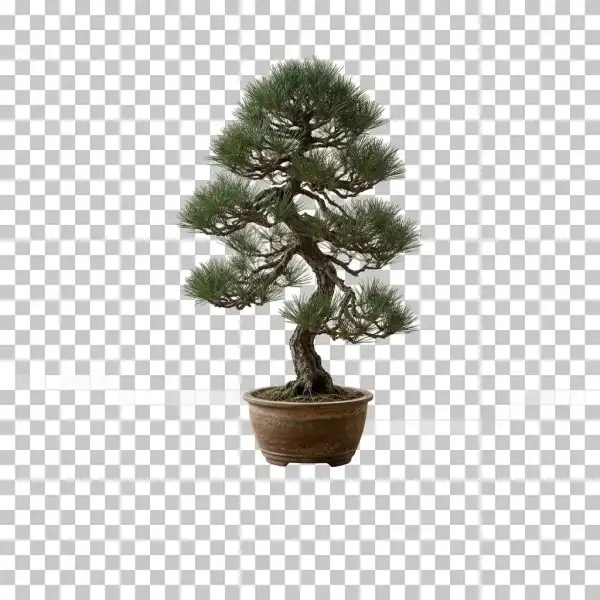
Product original picture→After product cutout
  • Upload an image with a complete subject and clear edges, then choose Express or Smart Cutout.
  • Check hair, transparent materials, and fine edges after processing. Adjust the background and download the result.
Results depend on background complexity, subject edges, and the clarity of the original image.
E-commerce general cutout case: after cutout of pine bonsai branches and leaves and flower pots with transparent background
E-commerce general cutout case: indoor desktop pine bonsai product cutout before
Case pictures are loading...
Case 02

Model portrait cutout

Remove the street background and show the cutout around the person and their hair.

Character original picture→After character cutout
  • Upload an image with a complete subject and clear edges, then choose Express or Smart Cutout.
  • Check hair, transparent materials, and fine edges after processing. Adjust the background and download the result.
Results depend on background complexity, subject edges, and the clarity of the original image.
AI cutout example: person separated from a street scene
AI cutout case: original image of character model under complex background
Case pictures are loading...
Case 03

Coffee equipment cutout

Extract the coffee maker and cup from an office desk scene, showing their outlines against a transparent-background preview.

Product original picture→After product cutout
  • Upload an image with a complete subject and clear edges, then choose Express or Smart Cutout.
  • Check hair, transparent materials, and fine edges after processing. Adjust the background and download the result.
Results depend on background complexity, subject edges, and the clarity of the original image.
AI cutout example: coffee maker and cup after background removal
AI cutout example: coffee maker and cup on an office desk
Case pictures are loading...
Case 04

Student portrait cutout

Automatically isolate the male student from the library scene, keeping his hair, face and clothing outline. The source was created with this website’s text-to-image tool and the result was produced with its automatic cutout tool.

Original lifestyle image→Automatic cutout on transparency
  • Upload an image with a complete subject and clear edges, then choose Express or Smart Cutout.
  • Check hair, transparent materials, and fine edges after processing. Adjust the background and download the result.
Results depend on background complexity, subject edges, and the clarity of the original image.
Student portrait cutout: Automatic cutout on transparency
Student portrait cutout: Original lifestyle image
Case pictures are loading...
Case 05

Long-haired woman cutout

Automatically isolate a woman from an office scene, showing background removal around her hair and knitted top. The source was created with this website’s text-to-image tool and the result was produced with its automatic cutout tool.

Original lifestyle image→Automatic cutout on transparency
  • Upload an image with a complete subject and clear edges, then choose Express or Smart Cutout.
  • Check hair, transparent materials, and fine edges after processing. Adjust the background and download the result.
Results depend on background complexity, subject edges, and the clarity of the original image.
Long-haired office portrait cutout: Automatic cutout on transparency
Long-haired office portrait cutout: Original lifestyle image
Case pictures are loading...
Case 06

Portrait cutout with glasses

Automatically isolate a man wearing glasses, retaining his glasses and shirt outline while removing the café background. The source was created with this website’s text-to-image tool and the result was produced with its automatic cutout tool.

Original lifestyle image→Automatic cutout on transparency
  • Upload an image with a complete subject and clear edges, then choose Express or Smart Cutout.
  • Check hair, transparent materials, and fine edges after processing. Adjust the background and download the result.
Results depend on background complexity, subject edges, and the clarity of the original image.
Portrait cutout with glasses: Automatic cutout on transparency
Portrait cutout with glasses: Original lifestyle image
Case pictures are loading...
Case 07

Coffee machine and cup cutout

Automatically identify the coffee machine and cup as foreground objects and remove the café background to show a multiple-object cutout. The source was created with this website’s text-to-image tool and the result was produced with its automatic cutout tool.

Original lifestyle image→Automatic cutout on transparency
  • Upload an image with a complete subject and clear edges, then choose Express or Smart Cutout.
  • Check hair, transparent materials, and fine edges after processing. Adjust the background and download the result.
Results depend on background complexity, subject edges, and the clarity of the original image.
Coffee machine and cup cutout: Automatic cutout on transparency
Coffee machine and cup cutout: Original lifestyle image
Case pictures are loading...
Case 08

Flowers, vase and diffuser cutout

Automatically isolate the flowers, vase and diffuser, retaining the main foliage and containers while removing the table and room background. The source was created with this website’s text-to-image tool and the result was produced with its automatic cutout tool.

Original lifestyle image→Automatic cutout on transparency
  • Upload an image with a complete subject and clear edges, then choose Express or Smart Cutout.
  • Check hair, transparent materials, and fine edges after processing. Adjust the background and download the result.
Results depend on background complexity, subject edges, and the clarity of the original image.
Flowers, vase and diffuser cutout: Automatic cutout on transparency
Flowers, vase and diffuser cutout: Original lifestyle image
Case pictures are loading...
Case 09

Sneakers and headphones cutout

Automatically isolate the sneakers and over-ear headphones, keeping multiple foreground objects while removing the display-space background. The source was created with this website’s text-to-image tool and the result was produced with its automatic cutout tool.

Original lifestyle image→Automatic cutout on transparency
  • Upload an image with a complete subject and clear edges, then choose Express or Smart Cutout.
  • Check hair, transparent materials, and fine edges after processing. Adjust the background and download the result.
Results depend on background complexity, subject edges, and the clarity of the original image.
Sneakers and headphones cutout: Automatic cutout on transparency
Sneakers and headphones cutout: Original lifestyle image
Case pictures are loading...
View AI cutout background removal guide