PicCat Restoring your images and input…

Manual cutout

Manual cutoutInstructions for use

The PicCat manual cutout tool supports free erasing of the background with a brush, and is suitable for supplementing edges, partially transparent bottom pictures and fine cutouts that are difficult to handle with AI automatic cutout.

Applicable scenarios

  • Suitable for personal, operational, e-commerce and office scenarios that need to quickly complete Manual cutout.
  • Support the completion of main operations in the browser, and preview the effects and parameters before processing.
  • It is suitable for batch organizing materials, optimizing release files, and improving the usability of pictures or documents.

Usage steps

  1. Open the Manual cutout page and select the picture or file that needs to be processed.
  2. Adjust processing mode, size, quality or AI parameters according to page prompts.
  3. After confirming the preview result, export the file and continue processing the next one or return to the tool list.

Manual cutoutTreatment effect case

Vase fine cutout

Manually mark the edge of the main body, completely retaining the details of the blue and white porcelain bottle mouth, bottle body pattern and base

Bonsai branches and leaves cutout

Use manual selection to assist in identifying fine branches and leaves, retaining tree trunks, flowerpots and natural edges

Elongated body cutout

Suitable for slender subjects such as candied haws, fine control of icing outline, bamboo sticks and transparent edges

Frequently Asked Questions

What usage scenarios does Manual cutout support?

The PicCat manual cutout tool supports free erasing of the background with a brush, and is suitable for supplementing edges, partially transparent bottom pictures and fine cutouts that are difficult to handle with AI automatic cutout. Common uses include Manual cutout, online cutout, background erasure, transparent background pictures, etc.

Will Manual cutout save my original file?

PicCat only provides online multimedia editing technology services. Some lightweight functions are processed locally in the browser, and functions involving AI or high-precision conversion will call cloud processing. After the processing is completed, the temporary files will be destroyed according to the page declaration.

What should I do if Manual cutout fails to process?

It is recommended to check the file format, size and clarity first, and if necessary, replace the file and try again. If it fails multiple times, you can submit a problem through the feedback portal in the upper right corner of the page.

Real picture modification case

Manual cutout

Keep the subject or erase the background with a brush, refine the edges and download.

Case 01

Vase fine cutout

Manually mark the edge of the main body, completely retaining the details of the blue and white porcelain bottle mouth, bottle body pattern and base
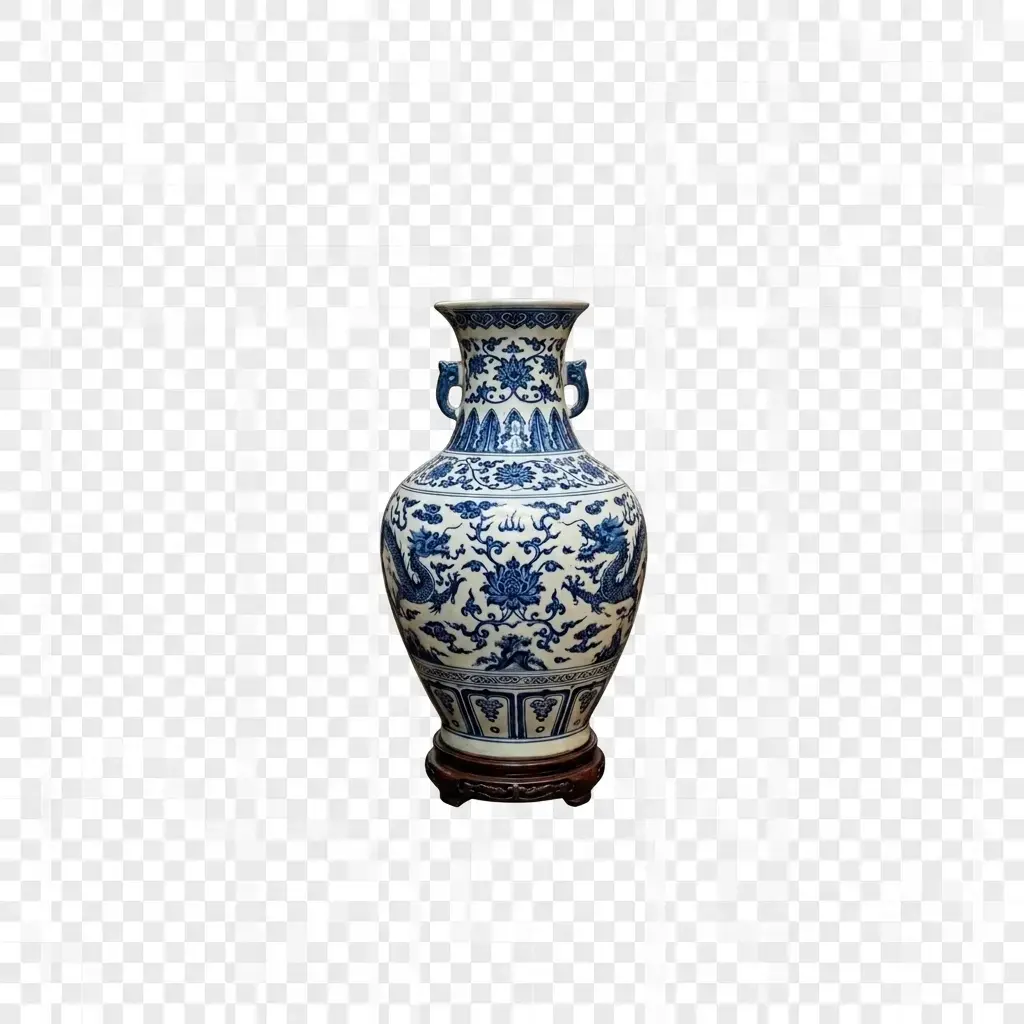

Indoor original picture→After manual cutout
  • Use the reveal brush to keep the subject and the eraser to remove unwanted areas.
  • Use a smaller brush for details; undo and adjust again if needed.
Examples show the processing effect. Results depend on source image clarity and settings.
AI manual cutout case: after the blue and white porcelain vase and wooden base are completely cut out
AI manual cutout case: blue and white porcelain vase in classical indoor scene before cutout
Case pictures are loading...
Case 02

Bonsai branches and leaves cutout

Use manual selection to assist in identifying fine branches and leaves, retaining tree trunks, flowerpots and natural edges

Complex branches and leaves background→After manual cutout
  • Use the reveal brush to keep the subject and the eraser to remove unwanted areas.
  • Use a smaller brush for details; undo and adjust again if needed.
Examples show the processing effect. Results depend on source image clarity and settings.
AI manual cutout case: after the pine bonsai branches, leaves, trunk and flowerpot are completely cut out
AI manual cutout case: indoor desktop pine bonsai before fine cutout
Case pictures are loading...
Case 03

Elongated body cutout

Suitable for slender subjects such as candied haws, fine control of icing outline, bamboo sticks and transparent edges

Night market complex background→After manual cutout
  • Use the reveal brush to keep the subject and the eraser to remove unwanted areas.
  • Use a smaller brush for details; undo and adjust again if needed.
Examples show the processing effect. Results depend on source image clarity and settings.
AI manual cutout case: after the candied haws sugar-coated outline and thin bamboo skewers are completely cut out
AI manual cutout case: night market figures holding candied haws in front of fine cutouts
Case pictures are loading...
View user guide