PicCat Restoring your images and input…

Remove shadows

Remove shadows onlineInstructions for use

The PicCat Shadow Elimination Tool supports online smearing to remove shadows, dark corners and redundant shadows in photos. AI automatically balances light and shadow and restores natural textures and colors. It is suitable for post-retouching of product images, portraits and landscape photos.

Applicable scenarios

  • Remove unnatural projections, facial vignetting or product shadows caused by light occlusion in photos.
  • Suitable for portrait photography in the later stage, e-commerce product image retouching, landscape photos to remove shadows, and street sweeping and capturing background cleaning.
  • When the shadow color is too dark or covers a complex texture, you can first try to eliminate it in a small area, and then combine it with the AI ​​local redraw function to refine it.

Usage steps

  1. To upload photos containing shadows or vignetting, it is recommended to choose JPG, PNG or WebP images with clear subjects.
  2. Select the shadow elimination tool and use a brush to accurately paint the shadow area that needs to be removed, trying not to exceed the edge of the shadow.
  3. Wait for AI to automatically process and restore light and shadow colors, preview and confirm that the effect is satisfactory, and then download the processing results.

Remove shadows onlineTreatment effect case

Report page shadow

Remove the large-area projection produced when photographing the report page, and restore a uniform white background and clear text

Contract window shadow elimination

Clean up window pane shadows and uneven lighting on contract photos to make the text area easier to read

Clean gray backgrounds in scanned documents

Improve the gray background and edge shadows of scanned contracts to make the page background cleaner and more uniform

Remove a phone shadow from meeting notes

Reduce shadows while retaining Chinese text, tables and numbers. The input is an original Chinese sample page with simulated shadows. The result was generated using this website’s AI Image Editor.

Remove window shadows from a purchase list

Reduce shadows while retaining Chinese text, tables and numbers. The input is an original Chinese sample page with simulated shadows. The result was generated using this website’s AI Image Editor.

Remove binding shadows from Chinese reading material

Reduce shadows while retaining Chinese text, tables and numbers. The input is an original Chinese sample page with simulated shadows. The result was generated using this website’s AI Image Editor.

Remove a hand shadow from study notes

Reduce shadows while retaining Chinese text, tables and numbers. The input is an original Chinese sample page with simulated shadows. The result was generated using this website’s AI Image Editor.

Remove edge shading from a community registration form

Reduce shadows while retaining Chinese text, tables and numbers. The input is an original Chinese sample page with simulated shadows. The result was generated using this website’s AI Image Editor.

Remove a diagonal shadow from a maintenance log

Reduce shadows while retaining Chinese text, tables and numbers. The input is an original Chinese sample page with simulated shadows. The result was generated using this website’s AI Image Editor.

Correct uneven lighting on a practice worksheet

Reduce shadows while retaining Chinese text, tables and numbers. The input is an original Chinese sample page with simulated shadows. The result was generated using this website’s AI Image Editor.

Remove strip shadows from an inventory sheet

Reduce shadows while retaining Chinese text, tables and numbers. The input is an original Chinese sample page with simulated shadows. The result was generated using this website’s AI Image Editor.

Frequently Asked Questions

What is the difference between eliminating shadows and eliminating clutter?

Eliminating clutter is mainly used to remove interfering objects that actually exist in the picture, while eliminating shadows is specifically aimed at dark areas caused by light occlusion, which can better restore the original color and texture of the covered area.

Can dark and heavy shadows be completely eliminated?

Light and translucent shadows work best. If the shadows are very deep, even causing the original picture details to be completely lost, the AI ​​can only guess the completion based on the surrounding environment, and there may be a slight smearing feeling.

How to apply the most natural effect?

It is recommended to only apply the actual shadow part, and not to cover the normal light-receiving surface in a large area. It is usually better to apply it in small areas multiple times than to apply it to a large area at once.

Real picture modification case

Remove shadows

Upload a document photo to remove uneven shadows and check the text.

Case 01

Report page shadow

Remove the large-area projection produced when photographing the report page, and restore a uniform white background and clear text
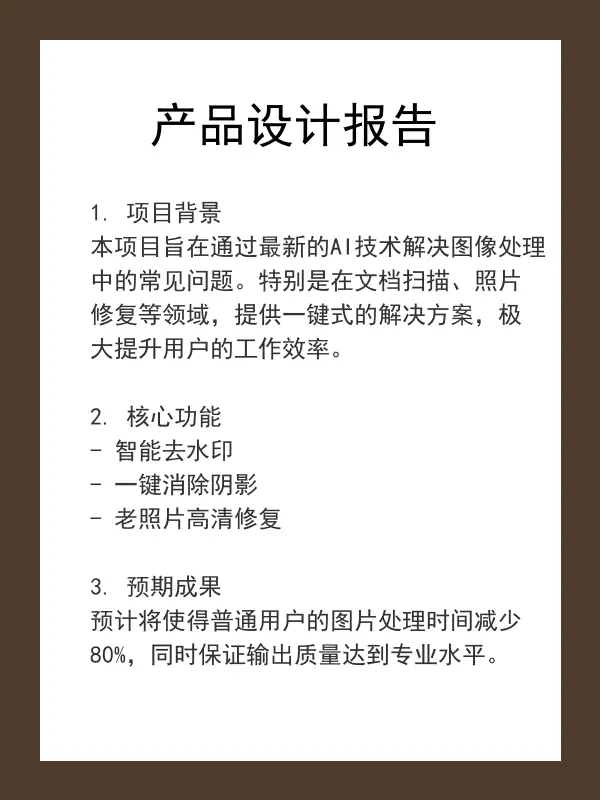
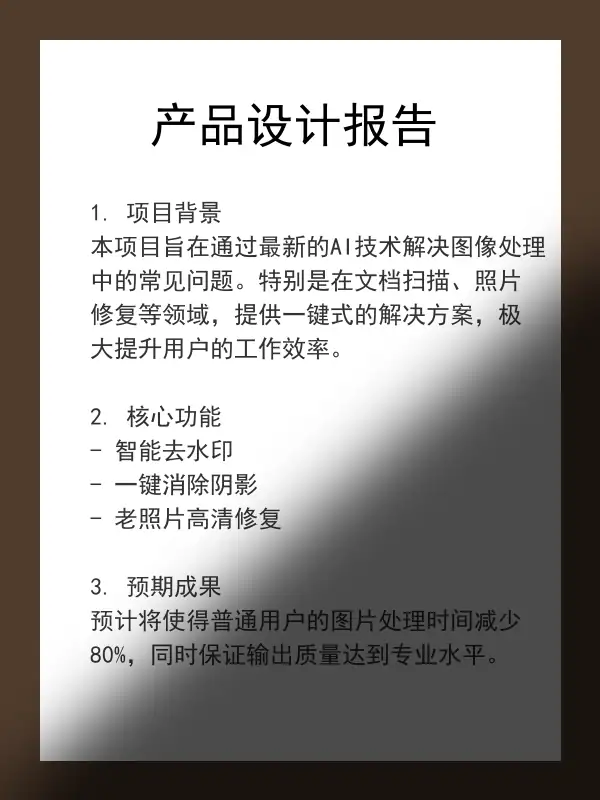
Document with projection→After eliminating shadow
  • Upload a clear original image and click to start processing.
  • Compare the original and result, zoom in to check details, then download.
Examples show the processing effect. Results depend on source image clarity and settings.
AI shadow elimination case: After the product design report page projection is eliminated and the white background is restored
AI shadow elimination case: before large-area projection elimination on product design report page
Case pictures are loading...
Case 02

Contract window shadow elimination

Clean up window pane shadows and uneven lighting on contract photos to make the text area easier to read

With pane shadow→After eliminating shadow
  • Upload a clear original image and click to start processing.
  • Compare the original and result, zoom in to check details, then download.
Examples show the processing effect. Results depend on source image clarity and settings.
AI shadow elimination case: after the shadow of the business consulting contract pane is eliminated and the white background is restored
AI Shadow Elimination Case: Business Consulting Contract Photo Pane Shadow Elimination Before
Case pictures are loading...
Case 03

Clean gray backgrounds in scanned documents

Improve the gray background and edge shadows of scanned contracts to make the page background cleaner and more uniform

Gray background scan→After clearing shadows
  • Upload a clear original image and click to start processing.
  • Compare the original and result, zoom in to check details, then download.
Examples show the processing effect. Results depend on source image clarity and settings.
AI Shadow Elimination Case: After cleaning the gray background shadows of scanned commercial contracts
AI shadow elimination case: commercial contract scans before gray background and edge shadow cleaning
Case pictures are loading...
Case 04

Remove a phone shadow from meeting notes

Reduce shadows while retaining Chinese text, tables and numbers. The input is an original Chinese sample page with simulated shadows. The result was generated using this website’s AI Image Editor.

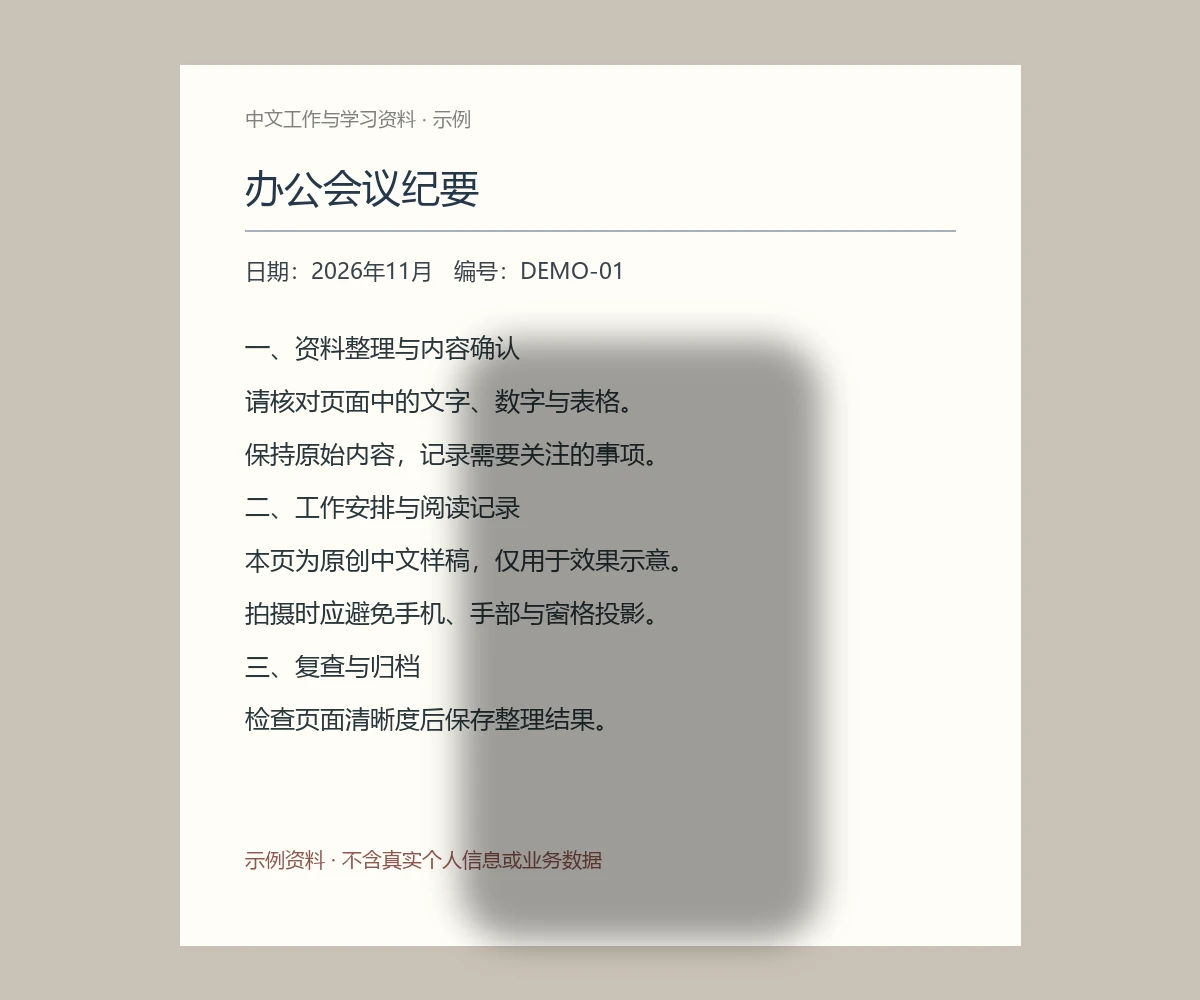
Simulated shadows→Website AI editing result
  • Upload a clear original image and click to start processing.
  • Compare the original and result, zoom in to check details, then download.
Examples show the processing effect. Results depend on source image clarity and settings.
Remove a phone shadow from meeting notes — generated using this website’s AI Image Editor
Remove a phone shadow from meeting notes — before example
Case pictures are loading...
Case 05

Remove window shadows from a purchase list

Reduce shadows while retaining Chinese text, tables and numbers. The input is an original Chinese sample page with simulated shadows. The result was generated using this website’s AI Image Editor.

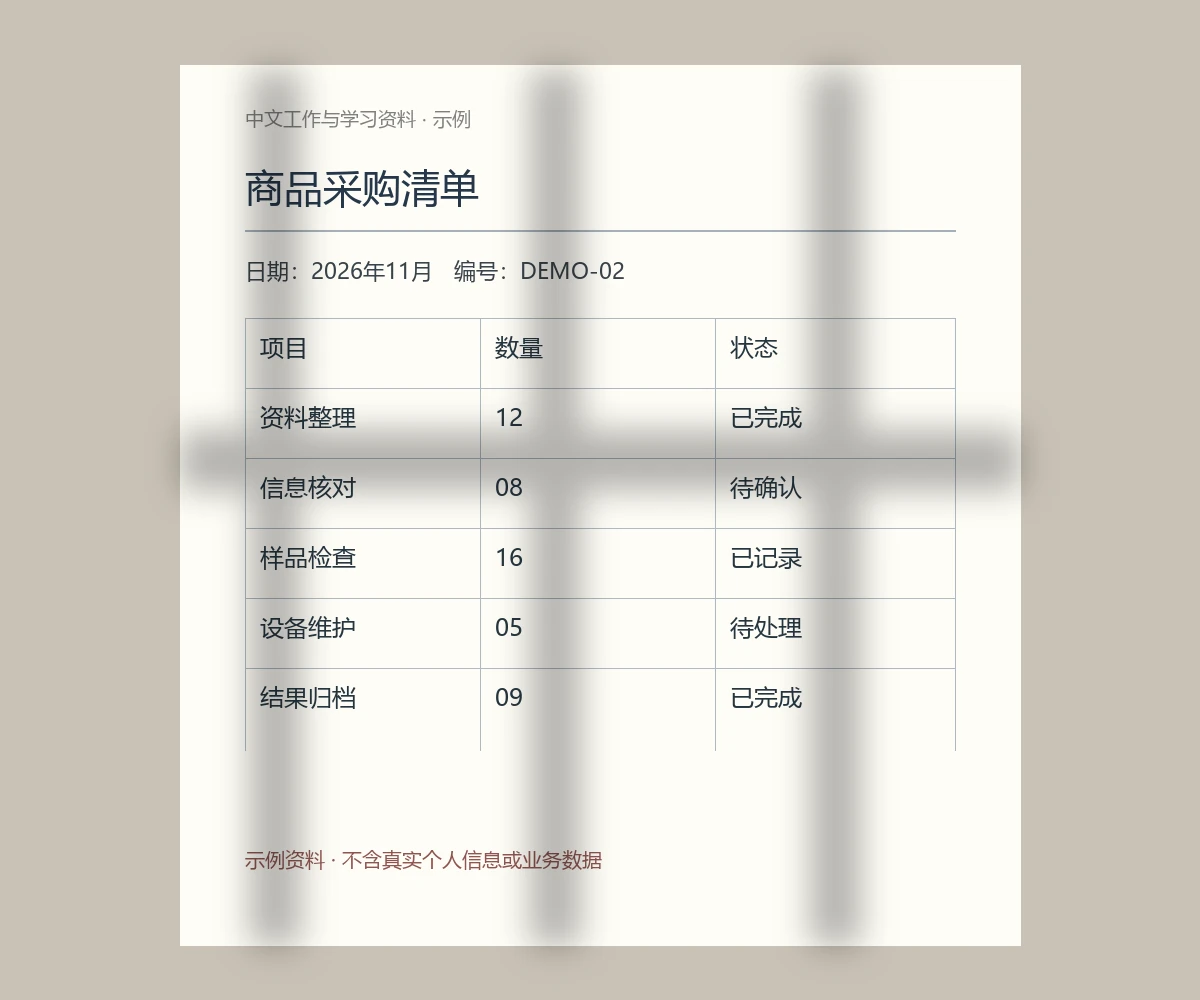
Simulated shadows→Website AI editing result
  • Upload a clear original image and click to start processing.
  • Compare the original and result, zoom in to check details, then download.
Examples show the processing effect. Results depend on source image clarity and settings.
Remove window shadows from a purchase list — generated using this website’s AI Image Editor
Remove window shadows from a purchase list — before example
Case pictures are loading...
Case 06

Remove binding shadows from Chinese reading material

Reduce shadows while retaining Chinese text, tables and numbers. The input is an original Chinese sample page with simulated shadows. The result was generated using this website’s AI Image Editor.

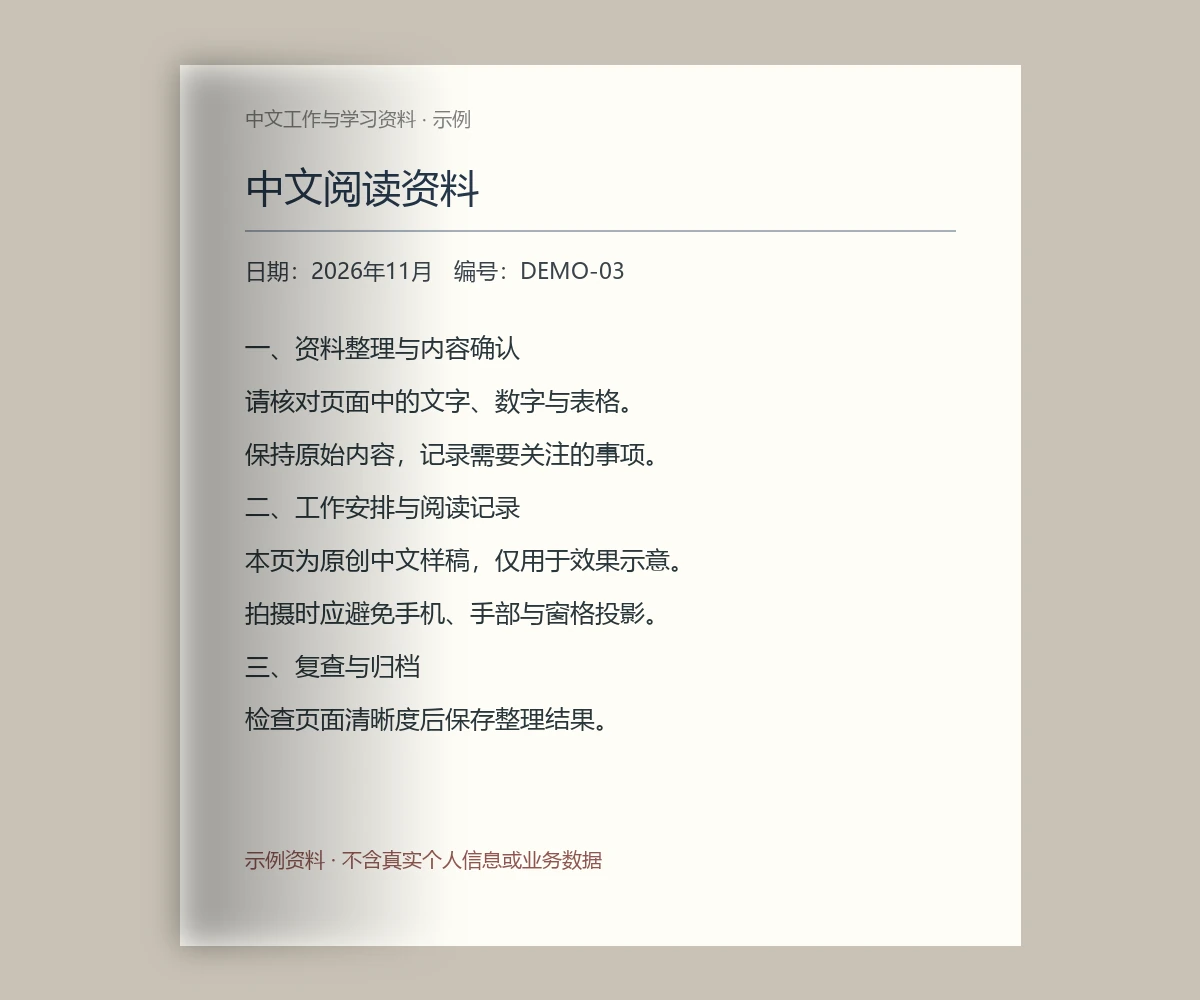
Simulated shadows→Website AI editing result
  • Upload a clear original image and click to start processing.
  • Compare the original and result, zoom in to check details, then download.
Examples show the processing effect. Results depend on source image clarity and settings.
Remove binding shadows from Chinese reading material — generated using this website’s AI Image Editor
Remove binding shadows from Chinese reading material — before example
Case pictures are loading...
Case 07

Remove a hand shadow from study notes

Reduce shadows while retaining Chinese text, tables and numbers. The input is an original Chinese sample page with simulated shadows. The result was generated using this website’s AI Image Editor.

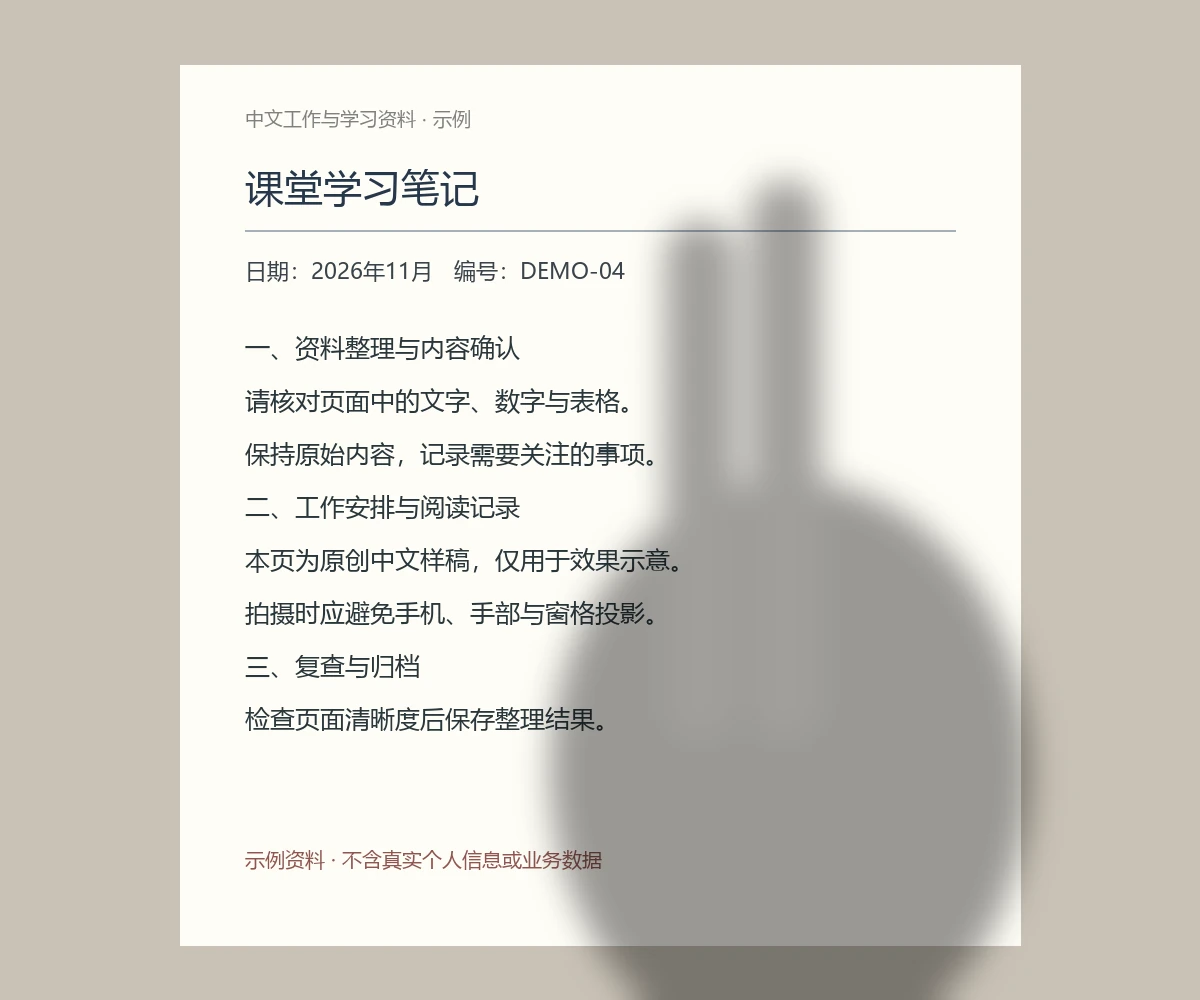
Simulated shadows→Website AI editing result
  • Upload a clear original image and click to start processing.
  • Compare the original and result, zoom in to check details, then download.
Examples show the processing effect. Results depend on source image clarity and settings.
Remove a hand shadow from study notes — generated using this website’s AI Image Editor
Remove a hand shadow from study notes — before example
Case pictures are loading...
Case 08

Remove edge shading from a community registration form

Reduce shadows while retaining Chinese text, tables and numbers. The input is an original Chinese sample page with simulated shadows. The result was generated using this website’s AI Image Editor.

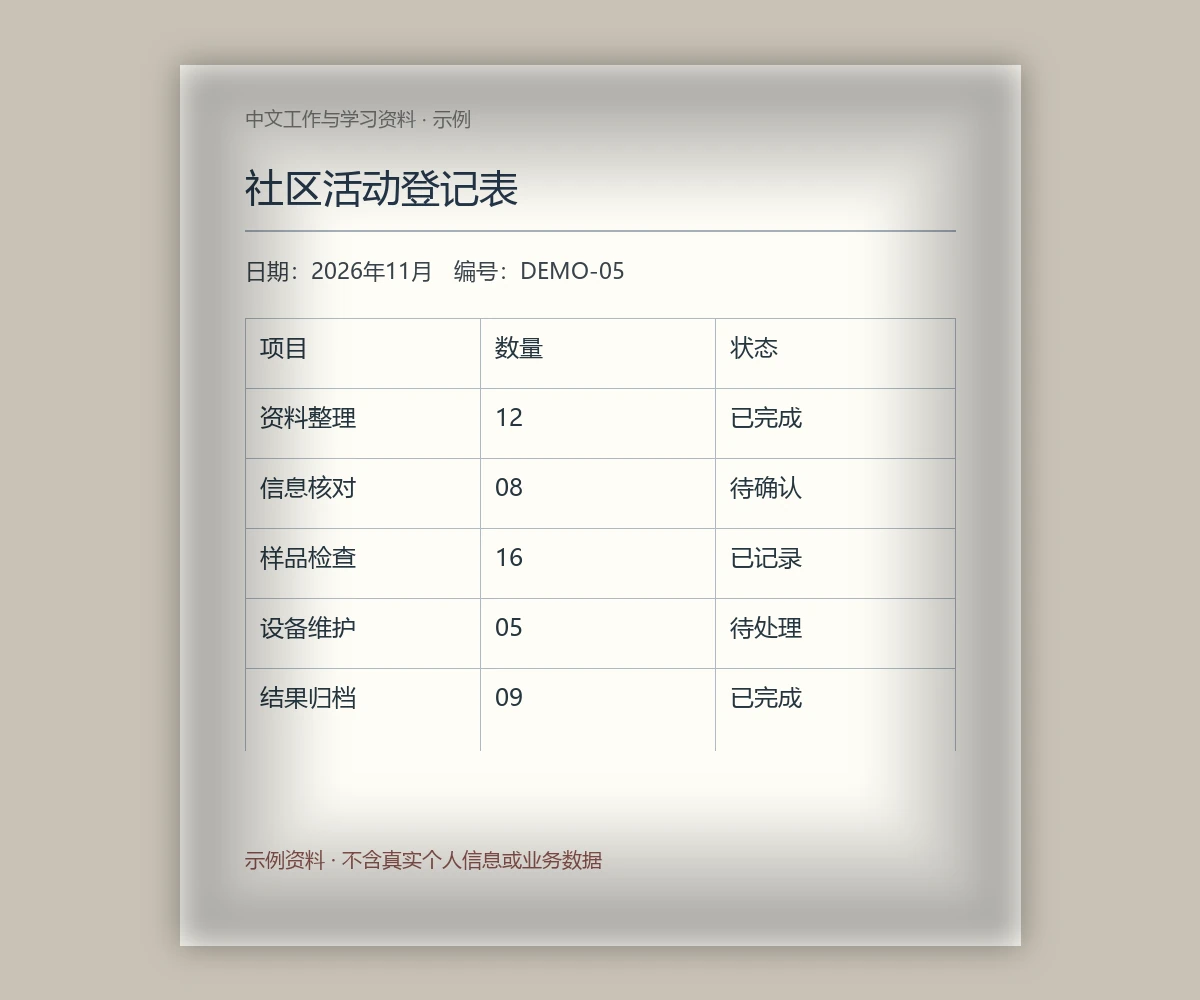
Simulated shadows→Website AI editing result
  • Upload a clear original image and click to start processing.
  • Compare the original and result, zoom in to check details, then download.
Examples show the processing effect. Results depend on source image clarity and settings.
Remove edge shading from a community registration form — generated using this website’s AI Image Editor
Remove edge shading from a community registration form — before example
Case pictures are loading...
Case 09

Remove a diagonal shadow from a maintenance log

Reduce shadows while retaining Chinese text, tables and numbers. The input is an original Chinese sample page with simulated shadows. The result was generated using this website’s AI Image Editor.

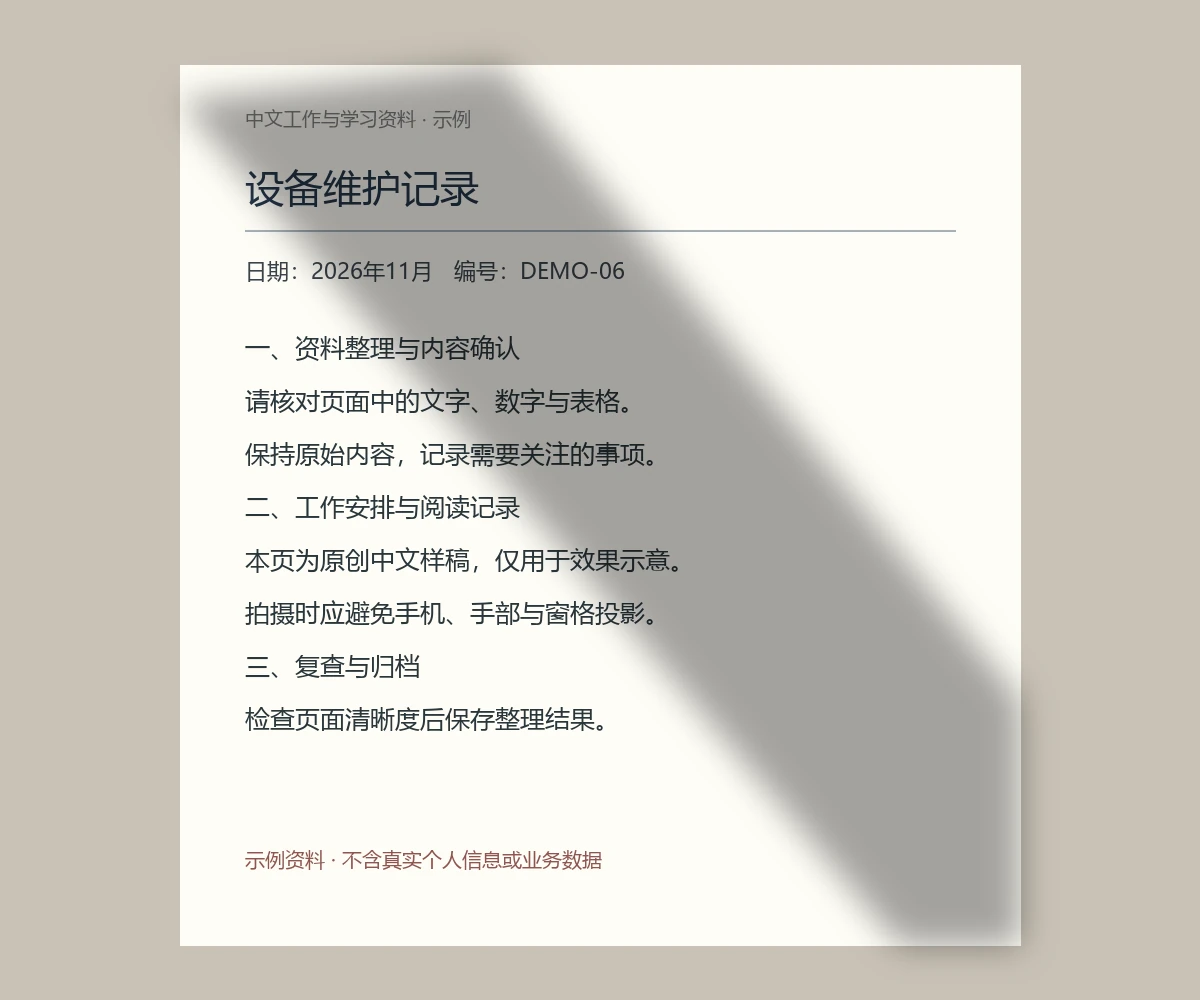
Simulated shadows→Website AI editing result
  • Upload a clear original image and click to start processing.
  • Compare the original and result, zoom in to check details, then download.
Examples show the processing effect. Results depend on source image clarity and settings.
Remove a diagonal shadow from a maintenance log — generated using this website’s AI Image Editor
Remove a diagonal shadow from a maintenance log — before example
Case pictures are loading...
Case 10

Correct uneven lighting on a practice worksheet

Reduce shadows while retaining Chinese text, tables and numbers. The input is an original Chinese sample page with simulated shadows. The result was generated using this website’s AI Image Editor.

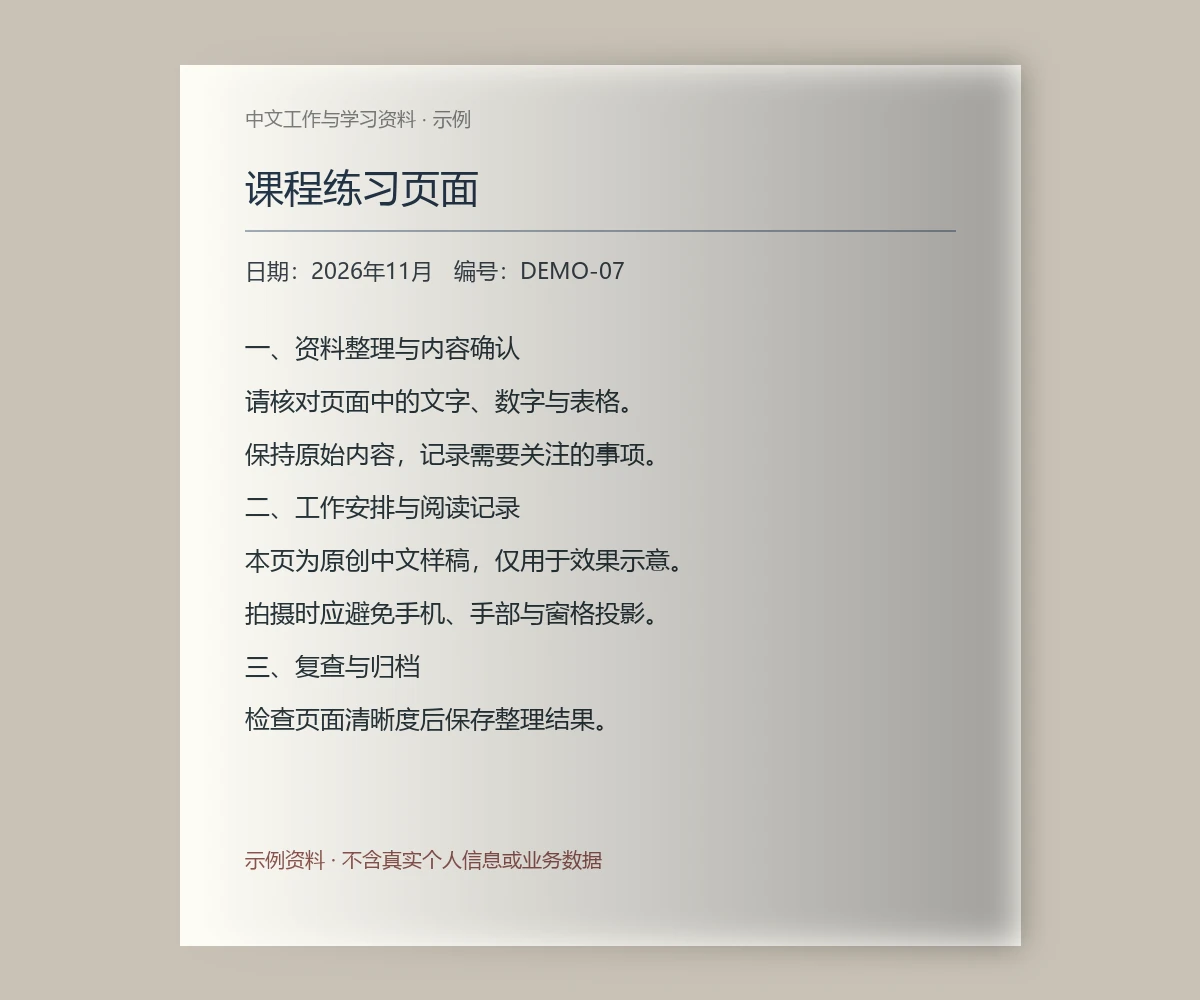
Simulated shadows→Website AI editing result
  • Upload a clear original image and click to start processing.
  • Compare the original and result, zoom in to check details, then download.
Examples show the processing effect. Results depend on source image clarity and settings.
Correct uneven lighting on a practice worksheet — generated using this website’s AI Image Editor
Correct uneven lighting on a practice worksheet — before example
Case pictures are loading...
Case 11

Remove strip shadows from an inventory sheet

Reduce shadows while retaining Chinese text, tables and numbers. The input is an original Chinese sample page with simulated shadows. The result was generated using this website’s AI Image Editor.

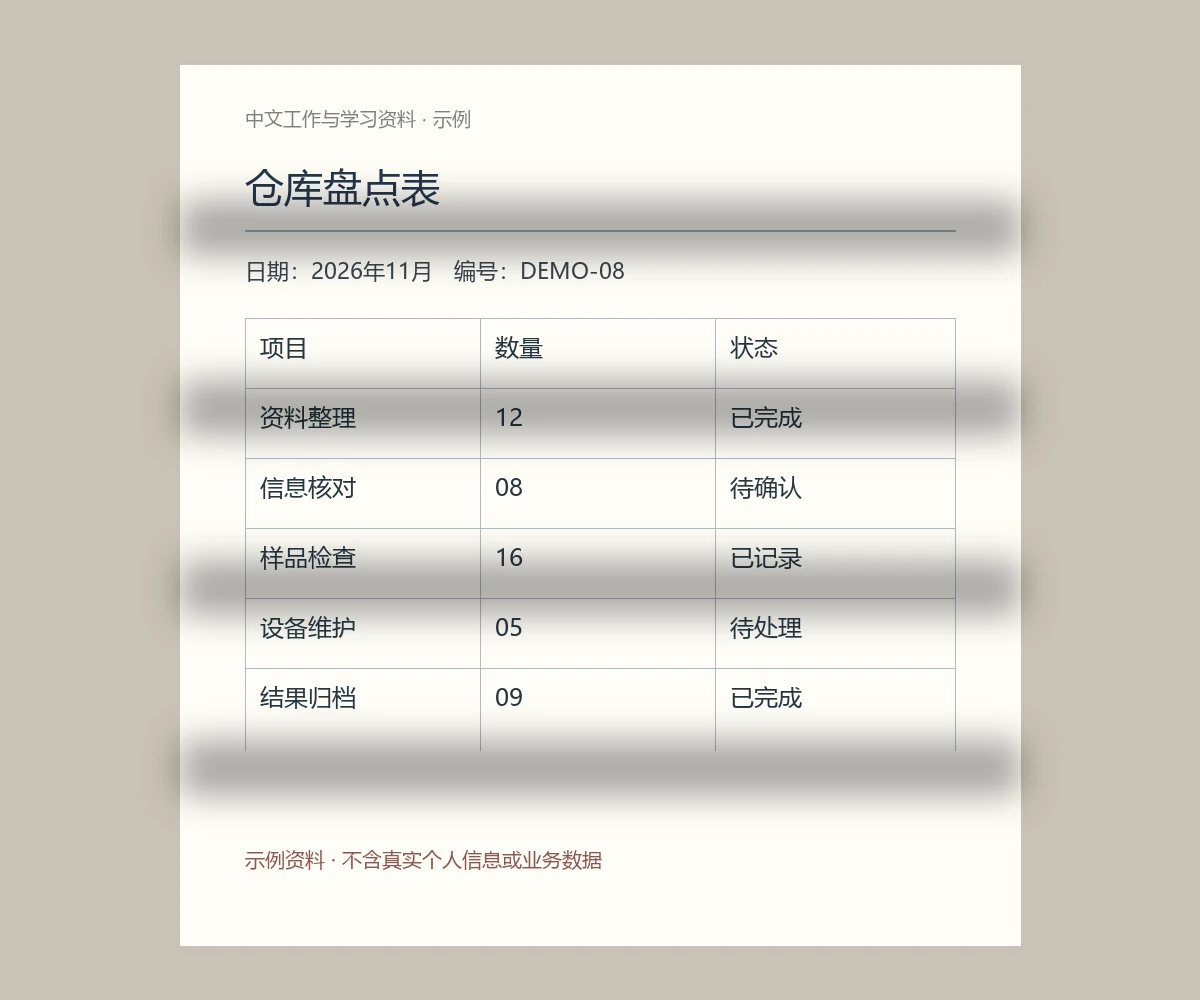
Simulated shadows→Website AI editing result
  • Upload a clear original image and click to start processing.
  • Compare the original and result, zoom in to check details, then download.
Examples show the processing effect. Results depend on source image clarity and settings.
Remove strip shadows from an inventory sheet — generated using this website’s AI Image Editor
Remove strip shadows from an inventory sheet — before example
Case pictures are loading...
View user guide