Chat records and long screenshots organized
Arrange the consecutive screenshots without sensitive information vertically in order; if the screenshots overlap, the repeated areas need to be cut off first.
 Restoring your images and input…
Long image generation tool
Upload and drag to sort up to 20 pictures locally in the browser, select vertically long pictures or horizontally wide pictures, unify the width/height, or retain the original size and set spacing, margins, rounded corners and background. The default zero spacing only allows images to be arranged adjacently and does not automatically delete overlapping content in screenshots.
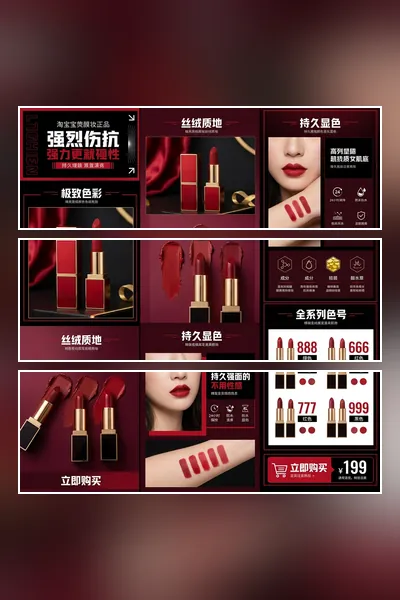
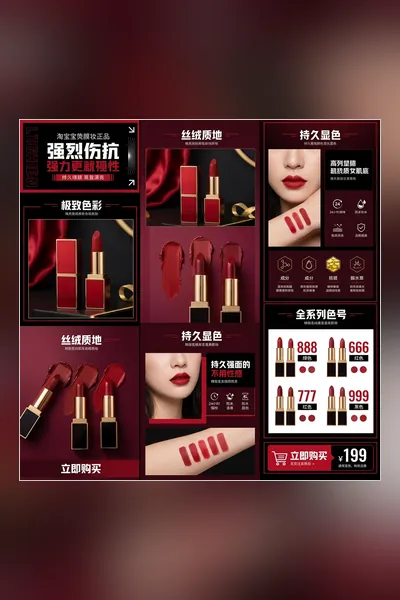
Suitable for these scenarios
Arrange the consecutive screenshots without sensitive information vertically in order; if the screenshots overlap, the repeated areas need to be cut off first.
Combine the self-owned product modules into a long picture to check the overall sequence, and then cut it according to the latest size and volume requirements of the target platform before officially uploading.
Organize the authorized film and television screenshots, tutorial steps or comparison pictures horizontally and vertically, and unify the reading order.
Operation path
Frequently asked questions
Currently, a maximum of 20 JPG, PNG, WebP or BMP images are supported at a time. The larger the image size, the more browser memory it takes up.
The tool draws pictures directly according to sorting and spacing, and does not recognize the overlapping areas of screenshots. Differences in original image edges, colors, scaling, or duplicate content may make joints visible.
Not necessarily. If the result exceeds 32,000 pixels on a side or about 120 million pixels, the tool will scale it down to reduce the risk of browser Canvas export failure.