Photographing documents and book pages
Improve the paper background, slight tilt and text edges to make the study and office materials that I have the authority to handle easier to read.
 Restoring your images and input…
Picture restoration
Upload photographed documents, book pages, tickets and courseware screenshots to the cloud document enhancement service to try to improve shadows, tilt, background and text edges. The output is still an enhanced image and is not automatically converted to editable text or a formal scanned document.
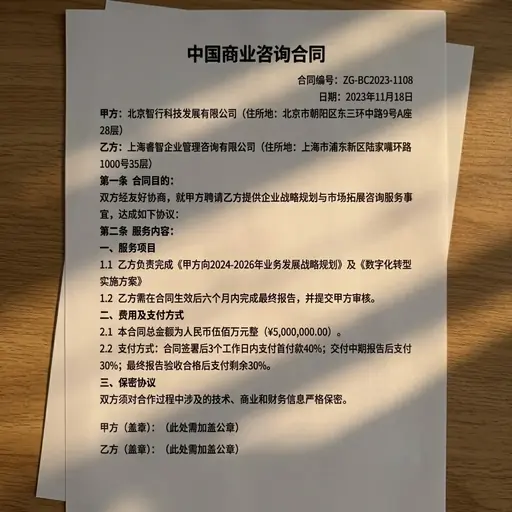
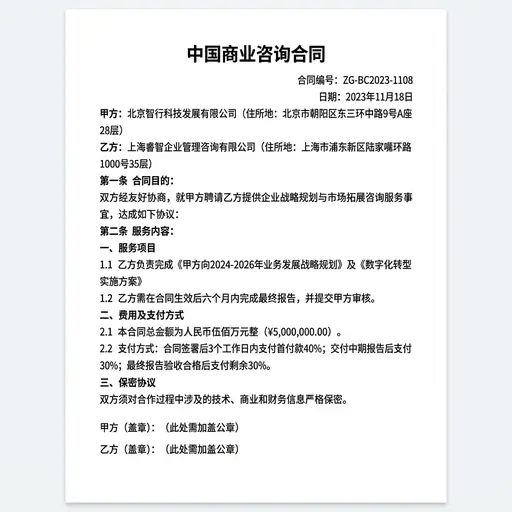
Suitable for these scenarios
Improve the paper background, slight tilt and text edges to make the study and office materials that I have the authority to handle easier to read.
Enhance low-contrast text and paper backgrounds, and important figures, seals, and table lines must be reconciled with the original image.
Try to improve slight blurring and uneven brightness; severe moiré, reflections, and overexposed content may not be recovered.
Operation path
Frequently asked questions
Text repair outputs enhanced pictures, which mainly improves the reading experience; OCR outputs plain text that can be copied, and the two processing goals are different.
Not guaranteed. The shooting angle, light, clarity and paper condition will all affect the results. For official archives and high-fidelity materials, it is still recommended to use professional scanning equipment.
Not guaranteed. Enhancement may change colors, edges, and small characters. Important diagrams, seals, and numbers should be enlarged for inspection and verified with the original image.